Website transfers
How to download a website backup from Freeparking
Freeparking cPanel accounts can create a full website backup. Save the files and database, and check what happens to your email before moving.
Check which Freeparking service holds the website
These backup steps apply to cPanel hosting. A domain-only account, managed WordPress product or Sitewiz builder may show different tools. Start by checking the product in your Account Manager rather than assuming every Freeparking website exports the same way.
If someone built the website for you, ask them which hosting account contains the working site. The domain’s registration alone does not identify the website files.
Official instructions: Freeparking: getting started and account products (opens in a new tab)
Generate the full backup in cPanel
- Open cPanel and choose Files > Backup, then Download a Full Account Backup.
- Choose Home Directory as the destination, add the notification email and select Generate Backup. Wait for the backup to finish.
- Open Files > File Manager, find the completed backup in the home directory and download it. Freeparking’s guide identifies the file by its backup date and .tar.gz ending.
Official instructions: Freeparking: create website backup files in cPanel (opens in a new tab)
A folder of files is not always the whole site
For WordPress or another database-backed site, make sure the database travels with the files. Freeparking also documents separate home-directory and database downloads if a full backup is not the right option.
Keep the original archive and agree a private way to pass it to the migration team. A full account backup can contain more than the public website, including information that should never appear in an open download link.
Official instructions: Freeparking: create website backup files in cPanel (opens in a new tab)
What we check before switching
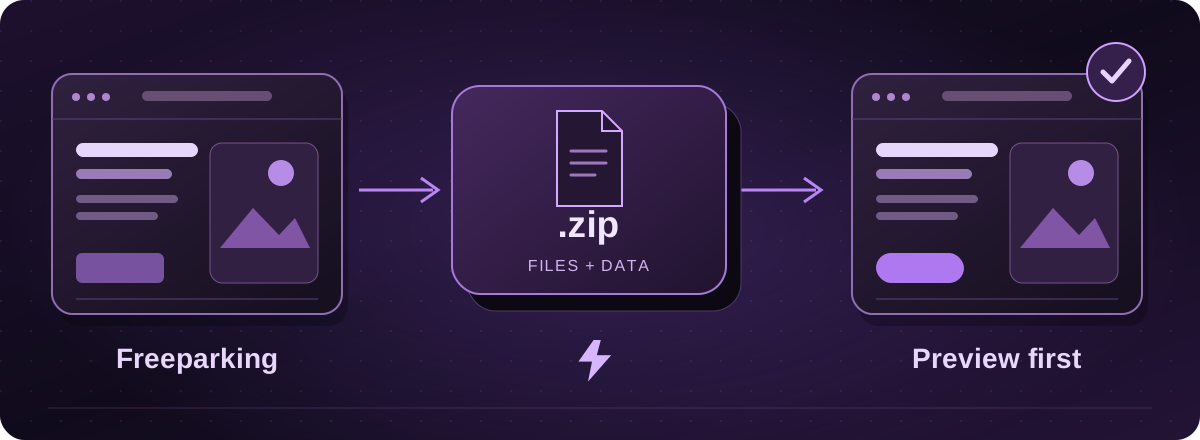
Lightning assesses the backup and the features you need, then prepares a separate copy or an agreed rebuild. You check a private preview before visitors move.
Tell us if email is part of the Freeparking package. We check its DNS and service arrangements before cancelling or changing anything. You can keep domain registration with Freeparking, and hosting with Lightning starts billing only at go-live.
These guides cover the provider’s published export options. Menus and plan access can change. We assess your particular website before confirming a transfer or rebuild.