Website transfers
How to download a WordPress website from Kinsta
MyKinsta can create a downloadable WordPress ZIP. It includes the files and database, while some hosting settings need a separate record.
Use the downloadable backup, not just a restore point
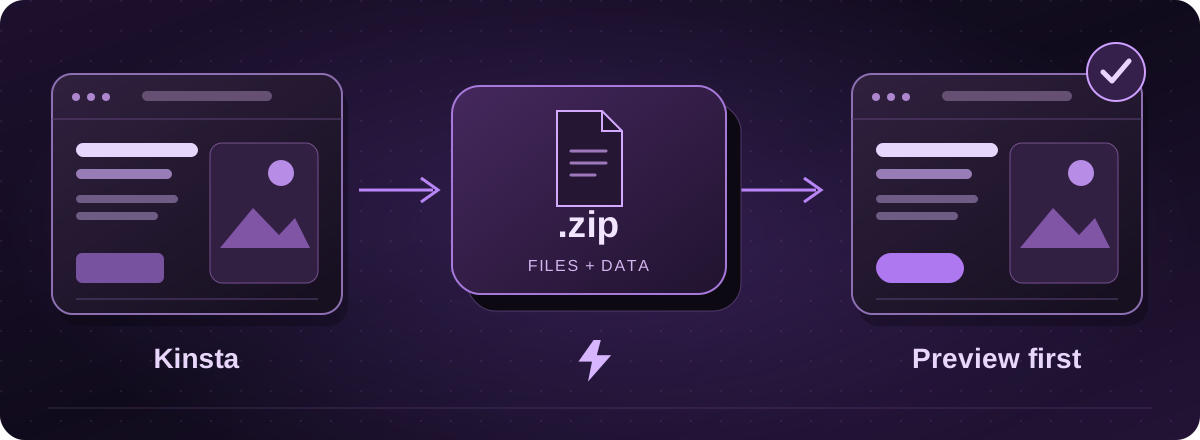
MyKinsta’s Download backup produces a ZIP containing WordPress files and a database export. It is different from the snapshot backups used to restore within Kinsta.
Kinsta documents one downloadable backup creation per week and a 48-hour download window. Arrange the timing so the copy is useful for the move.
Official instructions: Kinsta: downloadable WordPress backups (opens in a new tab)
Create and save the ZIP
- Open the correct website in MyKinsta and go to Backups, then Download.
- Choose Create backup now. Wait for the notification that the file is ready.
- Use the Download button in MyKinsta or the emailed download link and save the ZIP to your computer.
Official instructions: Kinsta: downloadable WordPress backups (opens in a new tab)
Record the settings that stay behind
The downloadable backup leaves out MyKinsta settings and custom server configuration, including redirects and custom Nginx rules. Ask your developer to record the relevant settings before access ends.
We also suggest noting paid plugins, external file storage and any services that send mail or take payments. A complete list of dependencies helps us agree the destination setup.
Official instructions: Kinsta: downloadable WordPress backups (opens in a new tab)
Give the copied site a proper check
Lightning assesses the backup before confirming the transfer scope. We prepare a private preview and test the pages, menus and enquiry process. A site accepting orders or bookings needs a plan for information received after the backup was taken.
We check domain and email arrangements separately, and only switch the live destination after approval. Keep Kinsta active until the replacement has been checked. Hosting with Lightning starts billing when the website is live with us.
These guides cover the provider’s published export options. Menus and plan access can change. We assess your particular website before confirming a transfer or rebuild.