Website transfers
How to download a website backup from MyHost NZ
For a MyHost cPanel account using JetBackup, download the website files and database. Choose Download rather than restoring over the live site.
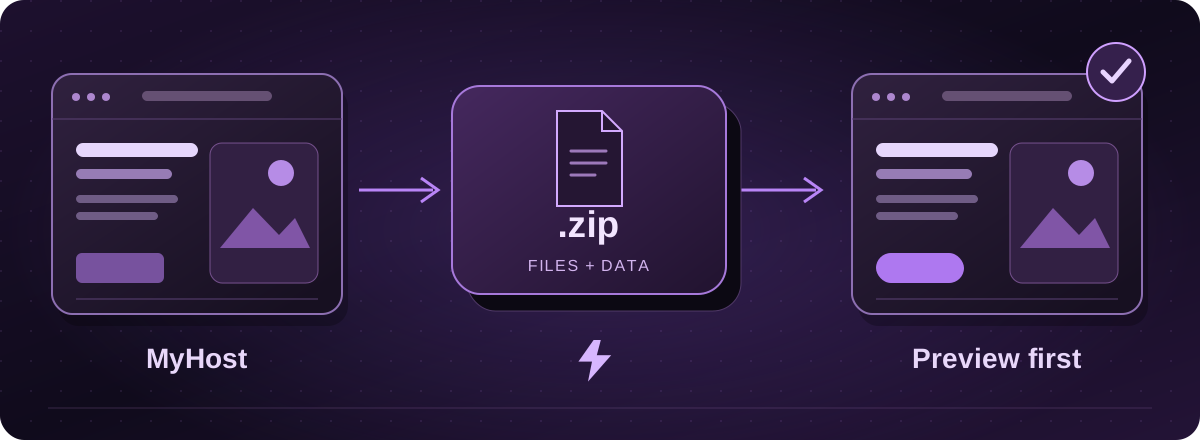
Find the website and its backup tools
This guide is for New Zealand’s MyHost and its cPanel hosting, not similarly named overseas services. MyHost’s help centre documents JetBackup 5 access through cPanel.
If the account holds several websites, open Domains in cPanel and note the right Document Root. That tells the migration team which folder belongs to your website.
Official instructions: MyHost NZ: cPanel and JetBackup access (opens in a new tab)
Download the backup without restoring it
- Open JetBackup 5 from cPanel. Select the relevant backup and either Full Account, if available, or the required website files and database items.
- Choose Download, review the selected items and confirm Download Selected Items. Do not choose Restore for a website move.
- Wait for processing to finish, then open Downloads in JetBackup and save the prepared file to your computer.
Official instructions: JetBackup: the user download process (opens in a new tab)
Check the selection before handing it over
A Full Account selection only includes available backup items. If you select database items separately, JetBackup also asks you to include the corresponding database users. Confirm the website files and the correct database are both in the handover.
If the download option or backup items are missing, ask MyHost support what your account permits. Do not use a restore as an experiment to find out what is in a backup.
Official instructions: JetBackup: the user download process (opens in a new tab)
Agree the actual move with Lightning
Start with your current website address and let us know which backup you have. We inspect the site and confirm the transfer or rebuild scope, including whether it can support your planned Arc updates.
We prepare a private preview before switching visitors. If email uses MyHost too, we plan that separately. Keep the existing service until the copied site and its important connections have been checked.
These guides cover the provider’s published export options. Menus and plan access can change. We assess your particular website before confirming a transfer or rebuild.