Website transfers
How to export a website from Crazy Domains hosting
For a Crazy Domains cPanel account, create a full backup and download it. Check the website product and email arrangements before moving.
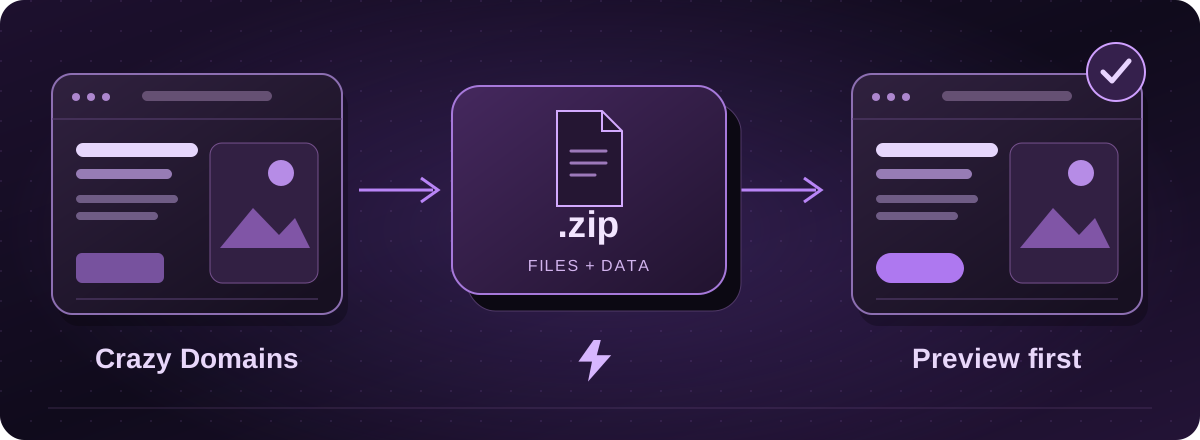
Check that the website uses cPanel hosting
This route is for a website held in a Crazy Domains cPanel hosting account. It is not the same as moving a domain registration or exporting a proprietary website builder.
If you only have a domain account, first find out who actually hosts the website. If an agency manages the site, ask them to help identify the product and arrange the backup.
Create and download the full backup
- Sign in to cPanel. Under Files, open Backup Wizard and choose Back Up, then Full Backup.
- Choose Home Directory as the backup destination, enter the notification email and select Generate Backup. Wait for it to finish.
- Go to Files > Backup and choose Download a Full Account Backup. Download the completed file from Backups Available for Download.
Official instructions: Crazy Domains: back up or restore files in cPanel (opens in a new tab)
Make sure the website’s database is included
A file-only copy may miss most of a WordPress site’s content. Check that the handover includes the correct database as well as the site files. cPanel also offers separate backups for home-directory data and MySQL databases.
For a custom site, record which folder belongs to the domain. Crazy Domains’ File Manager documentation distinguishes the main site from addon-domain folders. This matters if the account holds several websites.
Official instructions: Crazy Domains: back up or restore files in cPanel (opens in a new tab)Crazy Domains: manage files in cPanel (opens in a new tab)
A full account backup needs careful handling
Agree a private handover method before sending a backup. It may contain passwords, email data or customer information. Do not put it in a publicly accessible website folder or send it to a general chat.
Lightning assesses and restores the required website parts for its AWS hosting. A cPanel account archive is not something to copy blindly onto a new server. We check the software and external services first.
Keep email and registration in the plan
We prepare a separate website copy and show you a preview. Before switching, we check DNS, email dependencies and any new data received during the move. You can leave domain registration where it is; a transfer code is only needed for an agreed registration move.
These guides cover the provider’s published export options. Menus and plan access can change. We assess your particular website before confirming a transfer or rebuild.